
How to Extend EBS Volume on AWS EC2 Without Downtime in 2026
Running out of disk space on your EC2 instance can bring critical operations to a halt. Fortunately, you can extend EBS volume storage on AWS without any downtime or rebooting your instance. In this guide, I will walk you through every step of expanding your Amazon Elastic Block Store volumes and extending the file system to use the new space—all while your applications continue running. Whether you are managing a single server or an entire fleet, knowing how to expand EBS capacity quickly and safely is an essential skill for any cloud administrator.
Table of Contents
What Is EBS Volume Extension?
Amazon Elastic Block Store (EBS) provides persistent block-level storage for EC2 instances. When your application needs more AWS EC2 storage, AWS allows you to extend EBS volume size without detaching the volume or stopping your instance. This capability, called Elastic Volumes, lets you increase storage capacity, change volume types (for example, from gp2 to gp3), and adjust IOPS performance—all while your workloads keep running.
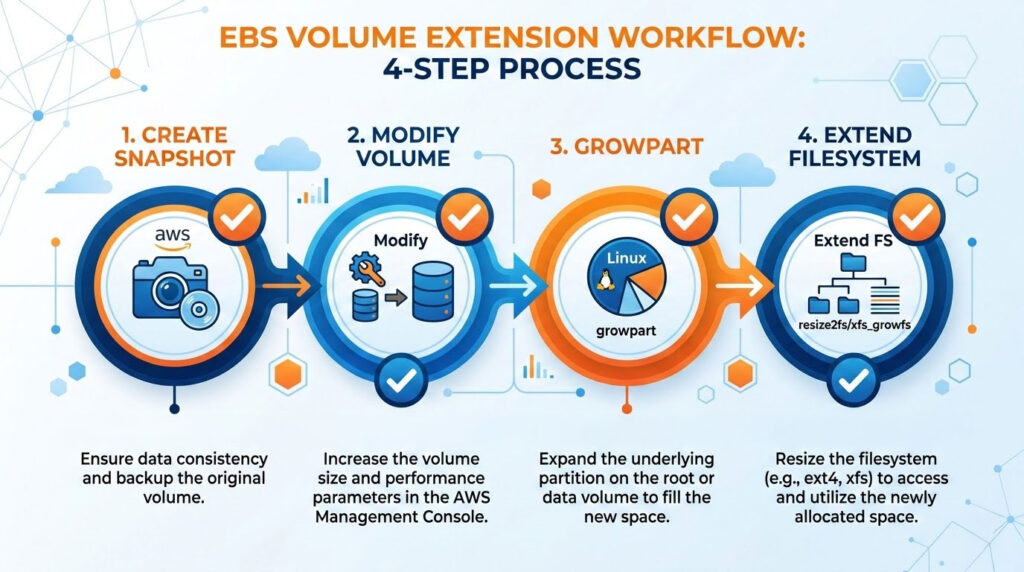
The process to extend EBS volume storage involves two distinct phases. First, you modify the volume size through the AWS Console or CLI. Second, you extend the partition and file system within your Linux instance so the operating system can use the additional space. If you are already comfortable setting up EC2 instances, this workflow will feel familiar.
Prerequisites Before You Extend EBS Volume
Before you begin the process to extend EBS volume capacity, complete these preparatory steps to minimize risk:
Create a snapshot backup: Always create a snapshot of your EBS volume before making modifications. This provides a recovery point if anything goes wrong. You can create snapshots through the EC2 Console under Elastic Block Store > Snapshots, or use the AWS CLI with aws ec2 create-snapshot. According to AWS documentation, EBS snapshots are incremental, meaning only changed blocks are stored after the first snapshot—keeping backup costs manageable even for large volumes.
Verify instance type compatibility: Current-generation EC2 instance types (Nitro-based) support Elastic Volumes, allowing you to resize EBS storage without stopping the instance. If you are running older Xen-based instance types, you may need to stop the instance first. You can check your instance hypervisor type in the AWS documentation.
Check current disk usage: Connect to your instance via SSH and run df -hT to view current disk usage and file system types. This tells you how much space you are using, the file system format, and the device name—all critical details for the extension commands. If you need help with SSH access, you can review how to create and reset key pairs in Ubuntu.
Understand your file system type: Linux instances typically use either XFS or ext4 file systems. Amazon Linux uses XFS by default, while Ubuntu and Debian often use ext4. The growpart command handles partition extension on both, but the file system resize step requires different tools: xfs_growfs for XFS and resize2fs for ext4.
Step 1: Modify EBS Volume Size in AWS Console
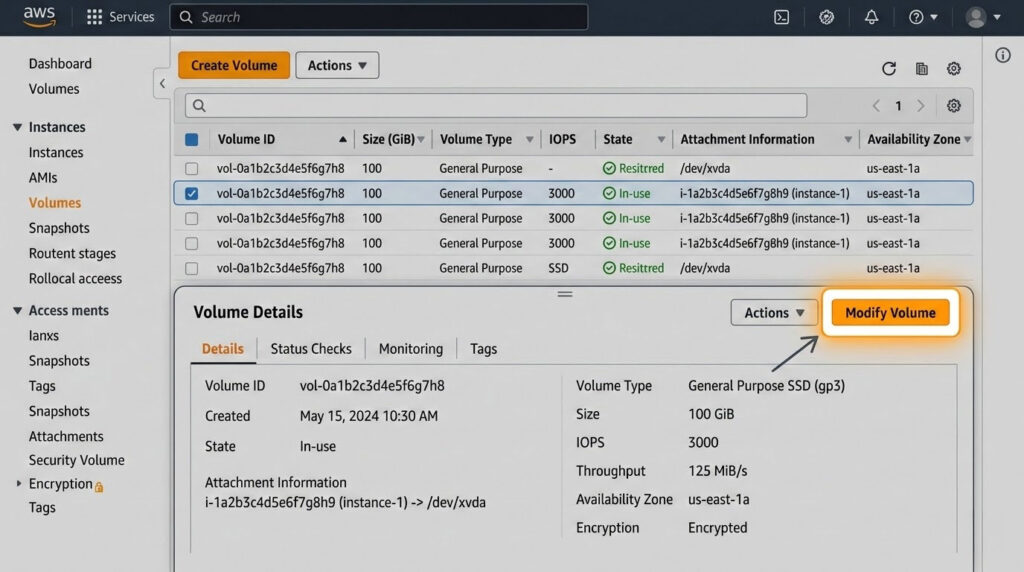
The first step to extend EBS volume capacity is modifying the volume size through the AWS Management Console. Log in to the EC2 Dashboard, select the instance whose AWS EC2 storage you want to increase, then click the Storage tab. Click on the Volume ID to open the volume details.
In the Volumes section, select the volume you want to modify. Click Actions and choose Modify Volume. Enter the new volume size in GiB. Remember that you can only increase the size—AWS does not support decreasing EBS volume sizes directly. Click Modify to confirm your changes.
After initiating the modification, monitor the Volume State column. The volume will transition through several states: modifying, optimizing, and finally completed. You can proceed with the partition extension as soon as the volume enters the “optimizing” state—you do not need to wait for full optimization to start using the additional AWS EC2 storage.
Using AWS CLI to Modify Volume
If you prefer the command line, you can extend EBS volume size using the AWS CLI. This approach is especially useful when you need to resize EBS storage across multiple instances through scripts or automation:
aws ec2 modify-volume --volume-id vol-0123456789abcdef0 --size 100
Replace vol-0123456789abcdef0 with your actual volume ID and 100 with your desired size in GiB. You can check the modification progress with:
aws ec2 describe-volumes-modifications --volume-id vol-0123456789abcdef0
The response includes a ModificationState field that shows whether the volume is still modifying, optimizing, or completed.
Step 2: Extend the Partition on Your EC2 Instance
After AWS has increased the volume size, you need to extend the partition within your Linux instance so the operating system recognizes the new capacity. Connect to your EC2 instance via SSH and follow these steps.
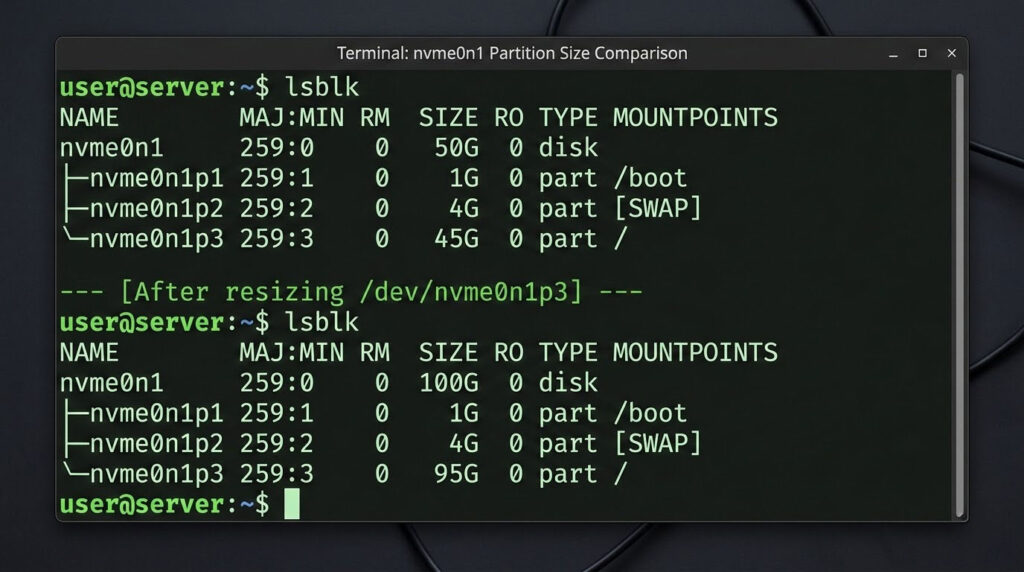
First, verify that the operating system sees the new volume size by running the lsblk command:
lsblk
On a Nitro-based instance, you will see output similar to this:
NAME          MAJ:MIN RM  SIZE RO TYPE MOUNTPOINT
nvme0n1       259:0    0  100G  0 disk
├─nvme0n1p1   259:1    0   50G  0 part /
└─nvme0n1p128 259:2    0    1M  0 part
On a Xen-based instance:
NAME    MAJ:MIN RM  SIZE RO TYPE MOUNTPOINT
xvda    202:0    0  100G  0 disk
└─xvda1 202:1    0   50G  0 part /
Notice that the disk shows the new size (100G) but the partition still shows the old size (50G). This confirms you need to extend the partition using the growpart command.
Use the growpart command to extend the partition. Pay attention to the syntax—it requires a space between the device name and the partition number:
For Nitro-based instances (NVMe devices):
sudo growpart /dev/nvme0n1 1
For Xen-based instances:
sudo growpart /dev/xvda 1
After running the growpart command, verify the partition extension with lsblk again. The partition size should now match the full volume size, confirming that the AWS EC2 storage expansion is recognized at the partition level.
Step 3: Extend the File System
With the partition extended, the final step to fully utilize your new storage is expanding the file system. The tool you use depends on whether your instance runs XFS or ext4. This is where you choose between the XFS and ext4 extension tools.
First, identify your file system type:
df -hT
This shows output including the file system type in the second column:
Filesystem     Type  Size  Used Avail Use% Mounted on
/dev/nvme0n1p1 xfs    50G   20G   30G  40% /
For XFS File Systems
Use the XFS growth tool with the mount point to expand the file system capacity:
sudo xfs_growfs -d /
The / refers to the mount point of the file system you want to extend. If your additional volume is mounted at a different path (like /data), specify that mount point instead. This tool works on mounted file systems, which is why you can extend EBS volume capacity without unmounting or rebooting.
For ext4 File Systems
Ubuntu, Debian, and some other distributions use ext4. Use the resize2fs command with the device name to expand storage on these systems:
For Nitro-based instances:
sudo resize2fs /dev/nvme0n1p1
For Xen-based instances:
sudo resize2fs /dev/xvda1
Unlike the XFS tool, which takes a mount point as an argument, resize2fs takes the device path. Getting this right is important—mixing them up is one of the most common mistakes when you extend EBS volume storage.
Step 4: Verify the Extension
After extending the file system, confirm that your instance now recognizes the full volume capacity:
df -hT
The output should now show the increased size:
Filesystem     Type  Size  Used Avail Use% Mounted on
/dev/nvme0n1p1 xfs   100G   20G   80G  20% /
Your EBS volume extension is now complete. The additional AWS EC2 storage is immediately available for use without requiring a reboot or any application restart.
Common Errors and Troubleshooting
When you attempt to extend EBS volume storage, you may encounter several common issues. Here is how to diagnose and resolve each one.
growpart: No space left on device
This error occurs when the volume is completely full and growpart cannot create temporary files:
mkdir: cannot create directory '/tmp/growpart.31171': No space left on device
FAILED: failed to make temp dir
Solution: Free up some disk space by deleting unnecessary files, clearing old log files with sudo journalctl --vacuum-size=50M, or removing old packages with sudo yum clean all (Amazon Linux) or sudo apt clean (Ubuntu). Even a few megabytes of free space is usually sufficient for the growpart command to operate.
resize2fs: Bad magic number in super-block
This error indicates you are using the wrong file system extension tool:
resize2fs: Bad magic number in super-block while trying to open /dev/nvme0n1p1
Solution: Your file system is not ext4—it is likely XFS. Run df -hT to check the file system type. If it shows XFS, use xfs_growfs instead of resize2fs. This is one of the most common mistakes I see when people attempt to expand their storage.
xfs_growfs: not a mounted XFS filesystem
xfs_growfs: /data is not a mounted XFS filesystem
Solution: Either you specified the wrong mount point, or your file system is not XFS. Verify with df -hT and ensure you are using the correct mount point. Remember that xfs_growfs requires the mount point (e.g., / or /data), not the device path.
NOCHANGE: partition cannot be grown
NOCHANGE: partition 1 is size 209713152. it cannot be grown
Solution: The partition already uses the entire volume. This typically means the AWS-side volume modification has not completed yet. Verify the volume state in the EC2 Console—it should be at least in the “optimizing” state before you run the growpart command.
Volume not showing new size
If lsblk does not show the increased volume size after you modify the volume in the console:
Solution: Wait for the volume modification to reach at least the “optimizing” state. For older instance types without Elastic Volumes support, you may need to reboot the instance or detach and reattach the volume. On Nitro-based instances, the new size should appear within seconds of the modification starting.
EBS Volume Types and Cost Considerations
When you extend EBS volume storage, it is a good opportunity to evaluate whether your current volume type is still the best fit. AWS offers several EBS volume types, each optimized for different workloads. As of 2026, gp3 is the recommended default for most general-purpose workloads and provides a 20% cost savings over gp2.
| Volume Type | Storage Cost (US East) | Baseline IOPS | Max IOPS | Best For |
|---|---|---|---|---|
| gp3 (General Purpose SSD) | $0.08/GB-month | 3,000 (free) | 80,000 | Most workloads, boot volumes, dev/test |
| gp2 (General Purpose SSD) | $0.10/GB-month | 3 per GB (min 100) | 16,000 | Legacy workloads (migrate to gp3) |
| io2 Block Express | $0.125/GB-month | Provisioned | 256,000 | Critical databases, SAP HANA |
| st1 (Throughput HDD) | $0.045/GB-month | N/A (throughput-based) | 500 MB/s | Big data, log processing |
| sc1 (Cold HDD) | $0.015/GB-month | N/A (throughput-based) | 250 MB/s | Infrequent access, archives |
If you are currently running gp2 volumes, I recommend converting to gp3 when you extend EBS volume size. You can change the volume type during the same modification operation—just select gp3 as the target type in the Modify Volume dialog. The gp3 type decouples IOPS from storage capacity, so you do not need to overprovision disk space just to get better performance. According to AWS, gp3 volumes now support up to 80,000 IOPS and 2,000 MB/s throughput per volume on Nitro instances.
EBS Volume Modification Limits
AWS imposes specific limits on how frequently you can modify AWS EC2 storage volumes. As of January 2026, AWS updated the Elastic Volumes feature with improved modification limits that give you more operational agility:
| Limitation | Details |
|---|---|
| Modifications per volume | Up to 4 modifications within a rolling 24-hour window |
| Cooldown period | Previous modification must complete before starting a new one (no fixed 6-hour wait) |
| Size reduction | Not supported—you can only increase volume size |
| Maximum volume size | 64 TiB for most volume types |
This is a significant improvement over the previous limit of needing to wait six hours between modifications. Now, as long as the previous modification has completed and you have initiated fewer than four changes in the past 24 hours, you can extend EBS volume size again immediately. If you hit the limit and need to make urgent changes, consider creating a new volume from a snapshot with your desired configuration, then swapping it with the existing volume. For root volumes, AWS provides the Replace Root Volume feature as a workaround.
Best Practices When You Extend EBS Volume
After managing dozens of EBS volume extensions across production environments, here are the practices I recommend to keep the process safe and efficient:
Always snapshot before modifying. Even though extending a volume is a low-risk operation, snapshots provide a safety net. Automate snapshot creation using Amazon Data Lifecycle Manager to avoid depending on manual backups.
Set up CloudWatch alarms for disk usage. Rather than discovering you are out of space when your application crashes, create a CloudWatch alarm on the VolumeQueueLength and disk utilization metrics. This gives you time to plan a volume extension before it becomes urgent.
Consider gp3 during every extension. Every time you resize EBS storage, evaluate whether switching from gp2 to gp3 makes sense. The migration happens online with no downtime, and the cost savings of roughly 20% per GB add up quickly on larger volumes.
Script the full workflow. If you regularly need to extend EBS volume capacity, consider scripting the entire process—from the AWS CLI modify command through the growpart command and file system extension—into a reusable Bash script. This eliminates human error and speeds up the process, especially if you manage servers that also run Node.js applications or other services that need fast storage recovery.
Clean up orphaned volumes and snapshots. Unattached EBS volumes continue to incur charges even when no instance is using them. After each volume extension operation, audit your environment for unused volumes and outdated snapshots to keep your AWS bill lean.
FAQ: Extend EBS Volume
Do I need to stop my EC2 instance to extend the volume?
No, you can extend EBS volume storage on current-generation (Nitro-based) EC2 instances without stopping the instance. The volume modification, partition extension using the growpart command, and file system expansion can all be performed while your applications continue running. However, for older Xen-based instance types that do not support Elastic Volumes, you may need to stop the instance first.
Can I decrease the size of an EBS volume?
No, AWS does not support reducing EBS volume size directly. If you need a smaller volume, you must create a new smaller volume, copy your data using tools like rsync or dd, and then swap the volumes. For root volumes, this process requires creating a snapshot, launching a new volume from that snapshot at the smaller size, and performing a root volume replacement.
How long does it take to resize EBS storage?
The time to resize EBS storage varies based on volume size and type. Small volumes may complete modification in seconds, while a 1 TiB volume can take up to six hours to fully optimize, according to AWS documentation. However, you can start using the additional space as soon as the volume enters the “optimizing” state—you do not need to wait for complete optimization to run the growpart command and file system extension.
What is the difference between xfs_growfs and resize2fs?
These commands extend different file system types when you extend EBS volume capacity. Use xfs_growfs for XFS file systems (default on Amazon Linux) and resize2fs for ext2, ext3, and ext4 file systems (common on Ubuntu and Debian). The key difference is that xfs_growfs takes a mount point as its argument, while resize2fs takes a device path. Using the wrong command results in an error. Check your file system type with df -hT before proceeding.
Do I need to reboot after extending the EBS volume?
No reboot is required when you properly extend EBS volume storage using the growpart command and the appropriate file system extension tool (xfs_growfs or resize2fs). The new space becomes available immediately after completing the extension process. Rebooting is only necessary for older instances that do not support online volume expansion.
How do I identify if my instance is Nitro-based or Xen-based?
Run lsblk and check the device names. Nitro-based instances show NVMe devices like /dev/nvme0n1, while Xen-based instances show traditional names like /dev/xvda. Most current-generation instance types launched after 2017 are Nitro-based. You can also check the AWS instance types documentation for a definitive list.
Can I resize EBS volume using AWS CLI?
Yes, you can resize EBS storage using the aws ec2 modify-volume command with the --size parameter. This is especially useful for automating volume extensions across multiple instances. After the AWS modification completes, you still need to SSH into the instance to extend the partition using the growpart command and then expand the file system using xfs_growfs or resize2fs.
Final Thoughts on Extending EBS Volumes
The ability to extend EBS volume storage without downtime is one of the most valuable features of AWS Elastic Volumes. By following this guide, you can confidently expand your AWS EC2 storage whenever your applications demand more capacity. Remember to always create a snapshot before modifications, identify your file system type correctly, and use the appropriate commands—the growpart command for partition extension, and either xfs_growfs or resize2fs for file system expansion.
As your infrastructure grows, consider pairing these storage management skills with securing your AWS environment with a private VPN and implementing the essential security practices that protect your data at every layer.
Sources: AWS EBS Documentation – Extend the file system after resizing an Amazon EBS volume, AWS EBS Documentation – Modify an Amazon EBS volume using Elastic Volumes operations, AWS EBS Documentation – Requirements for Amazon EBS volume modifications, AWS re:Post – Extend a Linux file system, AWS – Amazon EBS now supports up to four Elastic Volumes modifications in 24 hours (January 2026), AWS – Amazon EBS Volume Types

Husain Alhaboubi is Director of Digital Channels at Mobily, where he leads platform optimization, AI-powered customer engagement, and UI/UX strategy. With 20+ years of experience spanning eCommerce, IT infrastructure, and digital marketing, he previously drove a 225% revenue increase and 69% organic traffic growth as eCommerce Senior Manager at flyadeal, and managed enterprise IT operations — including data centers, ERP systems, and network security — as Group IT Manager at IPD Group.
Husain holds a BS in Information Systems from the University of Texas at Arlington and is certified in Google Ads, Google Analytics, and Semrush SEO. He writes from hands-on experience across both sides of digital business: the strategic (eCommerce, SEO, AI, digital transformation) and the technical (server administration, cloud computing, web development, networking, and security) — with a particular focus on the Saudi market and Vision 2030. Read his full resume →