
How to Find Product Key for Windows 11 from Command Line
Lost your Windows product key and need it back fast? Whether you are reinstalling Windows 11, transferring your license to a new PC, or simply keeping a backup of your activation details, knowing how to retrieve your activation key from the command line is one of the most reliable skills you can have. In this guide, I will walk you through every method available in 2026 — from Command Prompt and PowerShell to the Windows Registry — so you can recover your key in seconds.
Table of Contents
What Is a Windows Product Key and Why Do You Need It?
A Windows product key is a unique 25-character alphanumeric code formatted as XXXXX-XXXXX-XXXXX-XXXXX-XXXXX. Microsoft uses this code to verify that your copy of Windows is genuine and properly licensed. Think of it as a digital proof of purchase that ties your operating system to either your hardware or your Microsoft account.
You will need your product key in several situations: performing a clean reinstall of Windows 10 or Windows 11, transferring your license to a new computer (retail licenses only), activating Windows after a major hardware change like a motherboard swap, troubleshooting activation errors, or auditing licenses across multiple machines in a business environment. Without it, you risk losing access to your fully activated operating system.
Digital License vs. Product Key: Which Do You Have?
Before you start hunting for your product key, it is important to understand that Windows 10 and Windows 11 support two activation methods: a traditional product key and a digital license (also called a digital entitlement). According to Microsoft’s official activation documentation, a digital license links your activation directly to your device hardware and Microsoft account — no 25-character code required.
You likely have a digital license if you upgraded to Windows 10 or 11 for free from a genuine earlier version, purchased Windows from the Microsoft Store app, or are a Windows Insider participant. In contrast, you have a product key if your PC came with Windows pre-installed (OEM key embedded in BIOS/UEFI), you purchased a retail copy of Windows, or your organization uses volume licensing.
To check which activation method your system uses, go to Settings → System → Activation. If it says “Windows is activated with a digital license,” the command-line methods below may return a blank result since no key is stored locally. If it says “Windows is activated,” a product key was used and you can retrieve it.
Method 1: Find Your Windows Product Key Using Command Prompt
The Command Prompt (CMD) method is the classic approach to retrieving your product key. It uses the wmic command to query your system’s licensing service and display the OEM key embedded in your BIOS/UEFI firmware. Here is how to do it step by step:
- Open the search bar: Click the Windows search icon on your taskbar or press
Windows + S, then typecmd.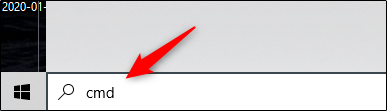
- Run as Administrator: Right-click on Command Prompt in the results and select “Run as administrator.” This elevated access is required for the command to work properly.
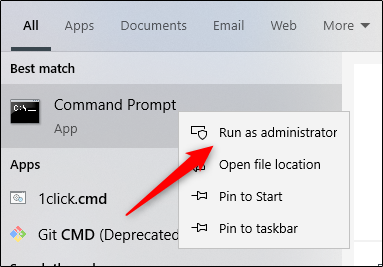
- Enter the WMIC command: Copy and paste the following command into the prompt and press Enter:
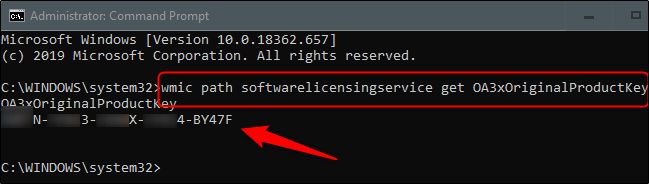
wmic path softwarelicensingservice get OA3xOriginalProductKey
- View your product key: Your 25-character product key will appear directly below the command. Copy it and store it somewhere safe.
Important: WMIC Deprecation in Windows 11
If you are running Windows 11 version 24H2 or later, the wmic command may not work out of the box. Microsoft officially deprecated WMIC back in 2021, converted it to a Feature on Demand (FoD) in Windows 11 22H2, and has been progressively removing it since. According to Microsoft’s official support documentation, WMIC will be fully removed after upgrading to Windows 11 version 25H2 and later releases. A fresh installation of Windows 11 24H2 already has WMIC removed by default.
If you see the error 'wmic' is not recognized as an internal or external command, you have two options. You can install WMIC as an optional feature by navigating to Settings → System → Optional Features → Add an optional feature, then searching for “WMIC” and installing it. Alternatively — and this is what I recommend — you should switch to the PowerShell method described next, which Microsoft officially recommends as the replacement.
Method 2: Find Your Product Key Using PowerShell
PowerShell is the modern, Microsoft-recommended approach for retrieving your Windows product key. It works on all current versions of Windows 10 and Windows 11 without requiring any optional features.
Follow these steps:
- Open PowerShell as Administrator: Right-click the Start menu button (or press
Windows + X) and select Windows PowerShell (Admin) or Terminal (Admin) on newer Windows 11 builds. - Run the PowerShell command: Copy and paste the following command and press Enter:
powershell "(Get-WmiObject -query 'select * from SoftwareLicensingService').OA3xOriginalProductKey"
Your 25-character activation key will display immediately. This command queries the same OEM key from the BIOS/UEFI firmware that the WMIC method accesses, but it uses PowerShell’s Get-WmiObject cmdlet instead of the deprecated wmic.exe tool.
If you want to use the newer CIM-based cmdlet (recommended for future compatibility), you can use this alternative command:
(Get-CimInstance -query 'select * from SoftwareLicensingService').OA3xOriginalProductKey
The Get-CimInstance cmdlet has superseded Get-WmiObject since PowerShell v3. Both commands produce the same result, but Get-CimInstance is the more modern and officially supported approach going forward. If you want to explore more essential Windows 11 commands, I have a dedicated guide covering the most useful ones.
Method 3: Find Your Product Key Using the Registry
The Windows Registry stores a backup copy of your product key that may differ from the OEM key embedded in your BIOS. This method is particularly useful when you manually entered a different retail key after purchasing your PC. Here is how to find it:
- Open the Registry Editor: Press
Windows + R, typeregedit, and press Enter. Click “Yes” on the User Account Control prompt. - Navigate to the product key location: Browse to the following path:
HKEY_LOCAL_MACHINE\SOFTWARE\Microsoft\Windows NT\CurrentVersion
- Look for the key values: Find the entry named
BackupProductKeyDefaultorProductId. TheBackupProductKeyDefaultvalue typically contains a readable product key. Note thatDigitalProductIdstores the key in an encoded binary format that requires a script to decode.
Alternatively, you can query the registry directly from PowerShell without opening the Registry Editor manually:
(Get-ItemProperty -Path 'HKLM:\SOFTWARE\Microsoft\Windows NT\CurrentVersion').BackupProductKeyDefault
Important note: The registry key and the BIOS/UEFI key may show different values. The BIOS key is the original OEM key that came with your hardware, while the registry key reflects the currently installed product key. If you upgraded from Windows Home to Pro using a retail key, the registry method will show your Pro key while the WMIC/PowerShell OA3 method shows the original Home key.
Alternative Methods to Find Your Product Key
If the command-line methods above do not work for your setup, here are additional ways to locate your license key:
Check your Microsoft account: If your digital license is linked to your Microsoft account, sign in at account.microsoft.com/devices to view your devices and associated licenses. While Microsoft does not display the full product key here, it confirms your activation status and lets you manage your digital licenses.
Check your email: If you purchased Windows digitally from the Microsoft Store or an authorized retailer, your product key should be in the order confirmation email. Search your inbox for terms like “product key,” “order confirmation,” or “Microsoft Store.”
Check physical packaging: For retail copies of Windows, the product key is printed on a label or card inside the box. On older OEM computers, look for the Certificate of Authenticity (COA) sticker, typically found on the bottom of laptops or on the side of desktop towers.
Contact your PC manufacturer: If you bought a pre-built PC with Windows pre-installed, the manufacturer’s support team may be able to help you recover your key. Brands like Dell, HP, and Lenovo often keep records of the license keys associated with their hardware serial numbers.
Use Windows Activation Settings: Navigate to Settings → System → Activation to see your current activation status and method. If you need to change your key, select “Change product key” from this screen. Keep in mind that this is also where you would troubleshoot any issues through a proper license recovery process.
Comparison: All Methods to Retrieve Your Product Key
Here is a side-by-side comparison of every method covered in this guide to help you choose the right approach for your situation:
| Method | Command / Location | Works On | Key Retrieved | Admin Required? |
|---|---|---|---|---|
| Command Prompt (WMIC) | wmic path softwarelicensingservice get OA3xOriginalProductKey | Windows 10; Windows 11 (if WMIC installed) | OEM key from BIOS/UEFI | Yes |
| PowerShell (Get-WmiObject) | (Get-WmiObject -query 'select * from SoftwareLicensingService').OA3xOriginalProductKey | Windows 10 and 11 (all versions) | OEM key from BIOS/UEFI | Yes |
| PowerShell (Get-CimInstance) | (Get-CimInstance -query 'select * from SoftwareLicensingService').OA3xOriginalProductKey | Windows 10 and 11 (all versions) | OEM key from BIOS/UEFI | Yes |
| Registry Editor | HKLM:\SOFTWARE\Microsoft\Windows NT\CurrentVersion | Windows 10 and 11 | Installed/retail key | Yes |
| Email / Microsoft Account | Order confirmation or account.microsoft.com | Any Windows version | Purchase key or digital license | No |
| Physical Packaging / COA | Box label or sticker on PC | Any Windows version | Retail or OEM key | No |
Troubleshooting: Command Returns a Blank Product Key
One of the most common frustrations when trying to find your product key is running the command and getting a completely blank result. This happens more often than you might expect, and there are specific reasons for it:
You have a digital license, not a product key. If you upgraded to Windows 10 or 11 for free, or purchased from the Microsoft Store app, your activation is tied to your Microsoft account and hardware — no product key is stored locally. The OA3xOriginalProductKey field will be empty because there is nothing to retrieve. Check Settings → System → Activation to confirm. If it reads “activated with a digital license,” that is why the field is blank.
You did not run the command as Administrator. Both CMD and PowerShell require elevated (administrator) privileges to access the licensing service. If you opened a regular (non-admin) terminal, the command may silently fail or return empty results. Always right-click and select “Run as administrator.”
WMIC is not installed. On Windows 11 24H2 and newer, WMIC is removed by default. If you are using the wmic command, you will see a “‘wmic’ is not recognized” error. Switch to the PowerShell method, or install WMIC as an optional feature via Settings → System → Optional Features.
Your PC uses a volume license (KMS/MAK). Enterprise and education environments often use Key Management Service (KMS) or Multiple Activation Key (MAK) licensing. These generic keys are shared across many devices and the OEM product key field will be empty. Contact your IT administrator for the appropriate license key.
You built your own PC. Custom-built PCs do not have an OEM key embedded in the BIOS/UEFI. If you installed Windows using a retail key, try the Registry method or check your original purchase email. Ensuring your system is well-maintained is also important — if you manage cloud infrastructure, consider how setting up secure connections on AWS can complement your overall IT security posture.
Common Mistakes to Avoid When Retrieving Your Product Key
Based on my experience troubleshooting Windows licensing issues, here are the most common mistakes people make:
Confusing the OEM key with the installed key. The WMIC and PowerShell OA3 commands retrieve the key embedded in your BIOS/UEFI firmware by the manufacturer. If you later upgraded your edition (e.g., Home to Pro) using a separate retail key, the OA3 command will still show the original Home key. Use the Registry method to find the currently active key instead.
Sharing your product key publicly. Your product key is tied to your license. Sharing it on forums, screenshots, or social media can lead to unauthorized use and potential deactivation of your own copy. Always redact or blur your key in any screenshots.
Relying on WMIC on newer systems. As of Windows 11 25H2, WMIC is fully removed after upgrade. If you are writing guides, scripts, or documentation, always include the PowerShell alternative. Microsoft has been clear that PowerShell is the long-term replacement.
Not backing up your key before a clean install. Before wiping your drive for a fresh Windows installation, always retrieve and save your product key. Once the drive is formatted, the Registry-stored key is gone. The BIOS-embedded OEM key survives, but retail keys do not persist through a clean install unless backed up externally.
Downloading third-party key finders from untrusted sources. While legitimate tools like NirSoft ProduKey exist, many “free key finder” downloads bundled from random websites contain malware. Stick to the built-in command-line methods covered in this guide whenever possible. For more on keeping your system secure, review my guide on essential website security tips.
FAQ: Windows Product Key
Can I use my Windows 10 product key to activate Windows 11?
Yes. Microsoft allows eligible Windows 10 product keys to activate Windows 11, as long as the key is not OEM-locked to a different device and the target hardware meets the Windows 11 minimum requirements. During Windows 11 installation, simply enter your Windows 10 product key when prompted.
Why does the command show a different key than what I originally entered?
The WMIC and PowerShell OA3 commands retrieve the OEM key from your BIOS/UEFI firmware, which is the key your PC manufacturer embedded during production. If you later entered a different retail or upgrade key, that key is stored in the Windows Registry instead. Use the Registry method to find your currently active key.
Is WMIC still available on Windows 11 in 2026?
It depends on your version. WMIC was disabled by default starting with Windows 11 24H2 and is fully removed after upgrading to 25H2. On fresh installations of 24H2 and later, WMIC is not included at all. You can still install it as an optional feature on some builds, but Microsoft recommends switching to PowerShell for all WMI tasks going forward.
Can I transfer my product key to another computer?
It depends on your license type. Retail licenses can be transferred to a new computer — you must deactivate or uninstall Windows from the old PC first. OEM licenses (the kind that come pre-installed on laptops and pre-built desktops) are tied to the original hardware and cannot be transferred. Digital licenses linked to your Microsoft account can sometimes be reactivated on new hardware using the Activation Troubleshooter.
What is the difference between OEM, retail, and volume license keys?
OEM keys are embedded in the BIOS/UEFI by the PC manufacturer and are locked to that specific hardware. Retail keys are purchased separately and can be transferred between PCs (one active installation at a time). Volume license keys (KMS/MAK) are used by organizations to activate multiple devices under a single agreement. Each type has different retrieval methods and transferability rules.
What happens if I lose my product key?
If your Windows activation is linked to your Microsoft account as a digital license, you do not need the key at all — Windows will reactivate automatically when you sign in. If you used a product key and cannot retrieve it through any of the methods in this guide, contact Microsoft Support or your PC manufacturer. For retail purchases, your order confirmation email serves as proof of purchase.
Does the product key change after a Windows update?
No. Regular Windows updates (including feature updates like 23H2 to 24H2) do not change your product key. Your activation status and license remain the same. However, if you perform an edition upgrade (e.g., from Home to Pro), the active product key will change to reflect the new edition.
Conclusion: Keep Your Product Key Safe
Finding your Windows product key does not have to be complicated. For most users, the PowerShell command (Get-CimInstance -query 'select * from SoftwareLicensingService').OA3xOriginalProductKey is the fastest and most reliable method in 2026, especially with WMIC being phased out across Windows 11 builds. If that returns blank, check whether you are using a digital license, try the Registry method, or look through your purchase emails.
My biggest recommendation: once you find your key, save it immediately. Store it in a password manager, a secure note, or even a physical piece of paper in a safe place. Having your product key accessible before you need it will save you significant time and frustration during reinstalls, hardware changes, or troubleshooting sessions.
Related reading:
- 15 Essential Windows 11 Commands: The Complete Guide for 2026
- How to Set Up a Private VPN on AWS: Ultimate Complete 2026 Guide
- How to Create and Reset Key Pair in Ubuntu: A Step-by-Step Guide
Sources: Microsoft – Activate Windows, Microsoft – WMIC Removal from Windows, Microsoft Tech Community – WMIC Deprecation Next Steps (2024), Microsoft – Find Your Windows Product Key

Husain Alhaboubi is Director of Digital Channels at Mobily, where he leads platform optimization, AI-powered customer engagement, and UI/UX strategy. With 20+ years of experience spanning eCommerce, IT infrastructure, and digital marketing, he previously drove a 225% revenue increase and 69% organic traffic growth as eCommerce Senior Manager at flyadeal, and managed enterprise IT operations — including data centers, ERP systems, and network security — as Group IT Manager at IPD Group.
Husain holds a BS in Information Systems from the University of Texas at Arlington and is certified in Google Ads, Google Analytics, and Semrush SEO. He writes from hands-on experience across both sides of digital business: the strategic (eCommerce, SEO, AI, digital transformation) and the technical (server administration, cloud computing, web development, networking, and security) — with a particular focus on the Saudi market and Vision 2030. Read his full resume →